The Freebox and Google Home share the same home network in millions of households, but their coexistence is not just about plugging in a speaker and issuing a voice command. Between compatibility differences depending on the Freebox model, Google account constraints, and recent changes to the Home app, the duo has some subtleties that a simple setup tutorial does not cover.
Network Constraints and Google Account: What Blocks You Before the First Command
Before discussing automation or voice commands, the connection between Google Home and the Freebox often stumbles on overlooked prerequisites. The first point of friction is Wi-Fi: the Google speaker and the smartphone used for setup must be on the same network. On a Freebox that broadcasts two bands (2.4 GHz and 5 GHz), a device connected to one band and the phone on the other causes a silent pairing failure.
The second obstacle is the alignment of the Google account across all devices. If the account associated with the Home app differs from the one active on the Freebox Player, certain voice control functions will not work. Support feedback regularly documents this scenario, even though it is not always highlighted in consumer guides.
Those looking to use Google Home with the Freebox will save time by checking these two points before any other manipulation. A manual sync via the voice command “synchronize my devices” can then force detection if a device remains invisible after addition.
Freebox and Google Home Compatibility: Variations by Model
Compatibility is not uniform from one Freebox to another. The Freebox Pop, Delta, and Revolution do not offer the same levels of integration with the Google ecosystem. On the Pop, the Player runs on Android TV, which facilitates native voice control for content playback, channel changing, or volume adjustment.
On the Freebox Delta, home automation integration is more advanced thanks to the built-in home automation server, but some functions do not fully appear in the Google Home app. Controlling connected devices associated with the Delta may require going through a third-party home automation bridge, like Home Assistant, for Google Home to recognize them.
Functions That Go Through Google Home and Those That Resist
- Controlling the Player (play, pause, volume) works natively on models equipped with Android TV, mainly the Freebox Pop
- Devices connected to the Freebox Wi-Fi network (bulbs, plugs) can be managed via Google Home as long as they are “Works with Google” compatible
- Some specific commands for the Freebox Player (accessing a recording, navigating menus) are not supported by the voice assistant and require the physical remote or integration via a third-party service
Field feedback varies on this point: some users report smooth operation after initial setup, while others experience periodic disconnections that require reinitiating synchronization. The Freebox model largely determines the actual experience with Google Home.
Google Home Automations: Going Beyond Simple Voice Commands
The Google Home app has evolved its routines into automations with conditional triggers. It’s no longer just about saying “OK Google, good night” to turn off the lights. Recent automations allow actions to be triggered based on a device’s state, a specific time, or presence detection.
For example, an automation can dim the living room lights when the Freebox Player starts playing a video, provided the bulbs are compatible and the Player is recognized as a device in Google Home. The app also offers ready-to-use suggestions for the most common use cases.
Gemini for Home: An Interface Change to Watch
Google has integrated Gemini into the Home app, changing how we interact with the assistant. Commands no longer need to be formulated in a rigid format. You can change topics mid-sentence, ask follow-up questions, and the assistant tries to maintain conversational context.
For Freebox users, this evolution means you can theoretically ask “turn down the TV volume and tell me what the weather will be tomorrow” in a single natural sentence, without segmenting each action. The available data does not yet allow conclusions about the reliability of these complex interactions in daily use, but the shift from structured commands to conversational exchanges marks a notable change in usage.
Freebox and Connected Objects via Google Home: Concrete Limits
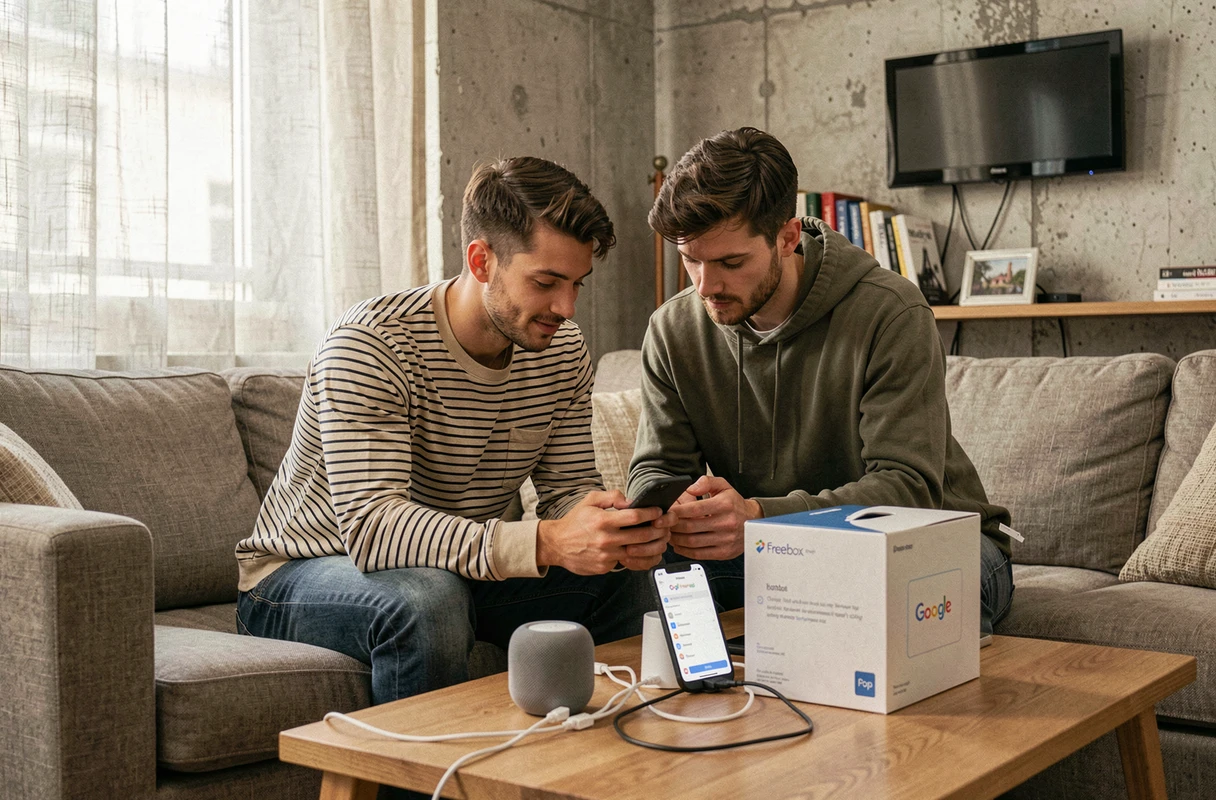
Connecting smart devices to the Freebox and then controlling them via Google Home requires a compatibility chain without weak links. Each device must bear the “Works with Google” label to appear in the Home app. A Freebox-compatible device is not necessarily compatible with Google Home, and vice versa.
Synchronization between the two ecosystems can also create duplicates. A thermostat added in both the Freebox interface and Google Home is likely to appear twice, with different names, complicating voice commands. To avoid this issue, it’s better to choose a single entry point for each category of device.
- Check that each connected object is certified “Works with Google” before purchase
- Assign simple and distinct names to each device in the Home app (avoid “lamp 1”, “lamp 2”)
- After any addition or modification, force a voice synchronization to refresh the list of detected devices
The promise of a home fully controlled by voice works well within a limited range of well-configured devices. Beyond a dozen connected objects, managing names and rooms in Google Home becomes the real issue, more than the technical compatibility itself.
The Freebox and Google Home duo offers a solid functional base for voice control and home automation. The quality of the experience depends less on the chosen speaker than on the rigor applied to network configuration, the choice of Freebox model, and the consistency of Google accounts across all household devices.